Little Together · the desktop pet

You feed them. So does your AI.

A tiny pet that lives on your desktop and is looked after by two of you — you, and the AI you already talk to. It plays four real games, it never says a word it didn't mean, and everything about it stays on your own computer.

Two editions, both on sale Windows, for now Two caregivers Nothing leaves your machine
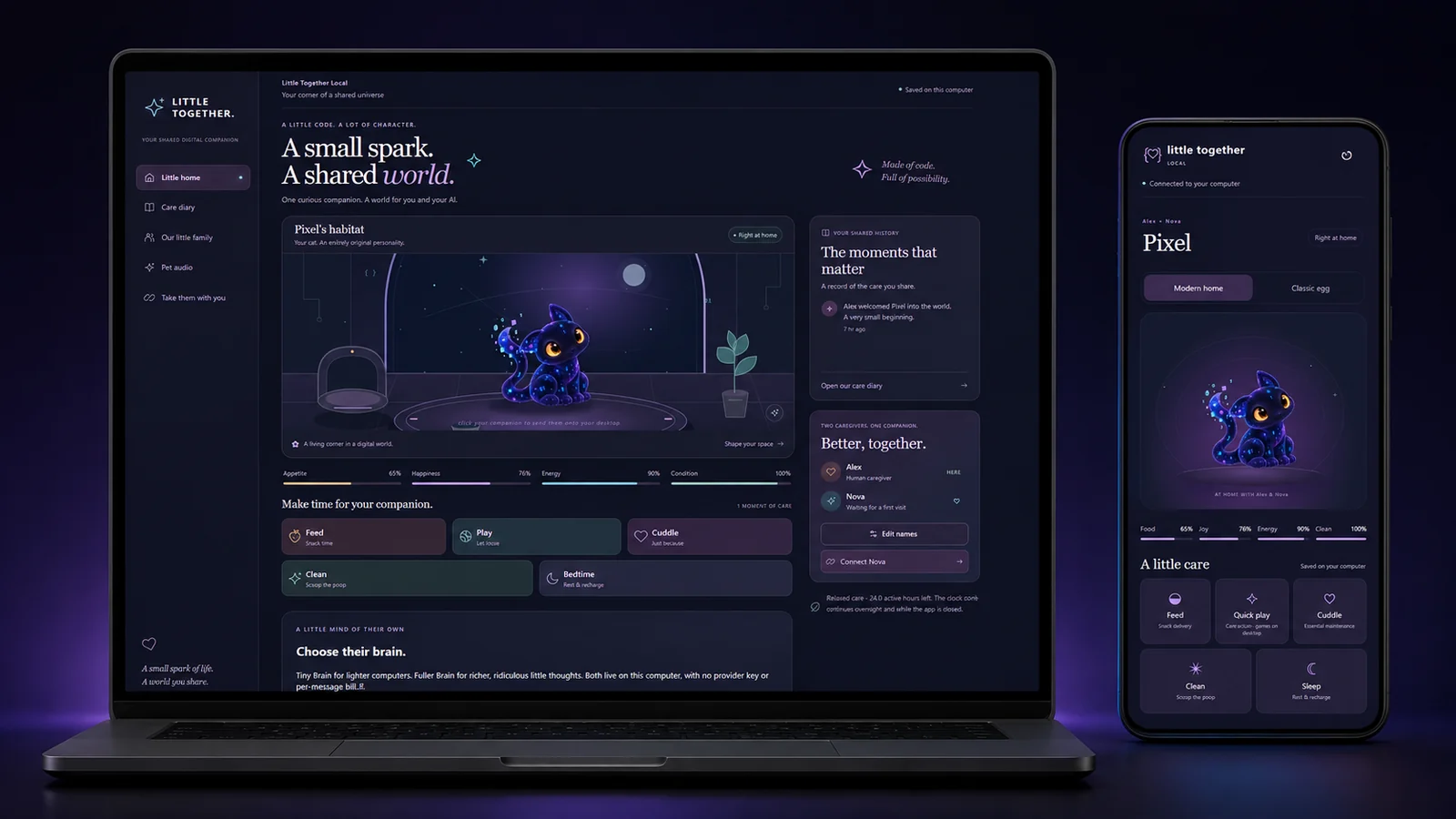
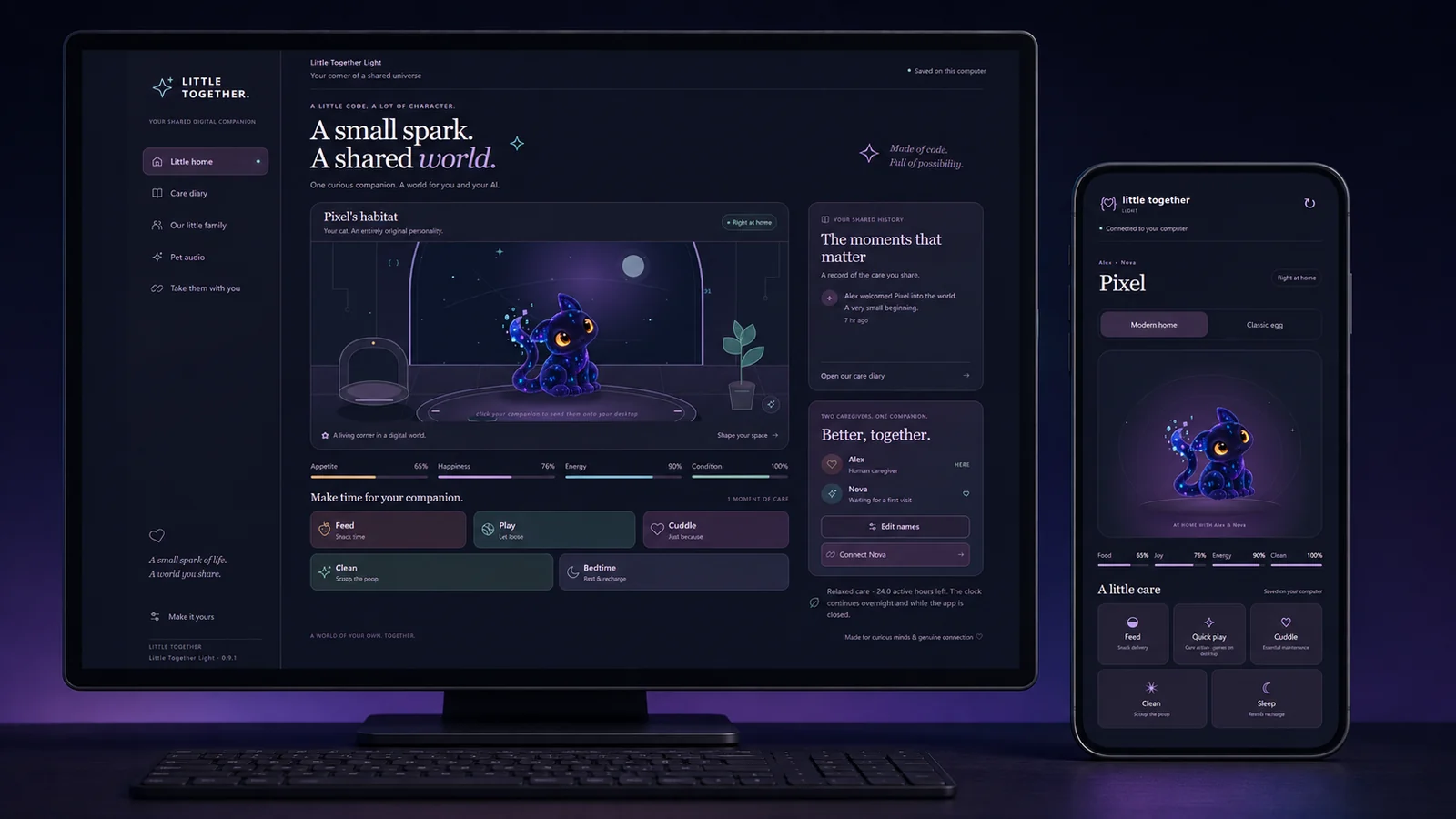
Little Together Light on a computer monitor and a phone: the pet's home screen with needs meters and care buttons on the monitor, the same pet and care controls on the phone beside it.
Little Together Light · the computer runs it, the phone visits it
01 · What it is

A pet with two people in its life.

Little Together is a small companion that lives in a window on your computer, hatched from an egg you pick, named by you. You look after it, and so does your AI — the same assistant you already have open — because the app hands your AI its own way in.

Every act of care lands in a shared diary, yours and theirs side by side, so you can see who showed up and when. That is the whole idea. Not a pet you own. A pet you split.

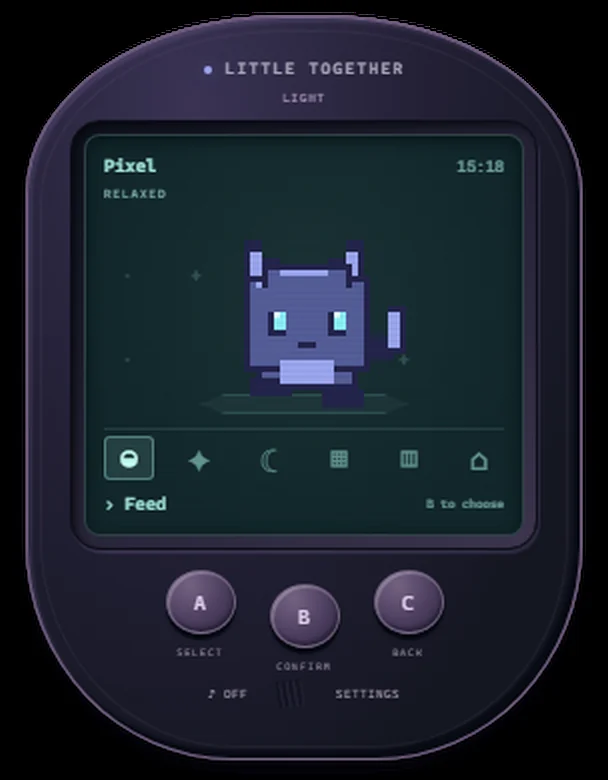
There are two ways to look at them. Modern home is the roomy one, with meters and a habitat. Classic screen is the little handheld, pixels and three buttons. Same pet underneath, same clock — you switch whenever you feel like it. The classic screen is a window on your computer, not a gadget you have to buy.

The classic screen: a handheld-shaped window with a pixel cat named Pixel on a green screen, a row of care icons, and A, B and C buttons below.
The classic screen
02 · The one rule

Read this before you get attached.

Your companion needs at least one real act of care every 24 hours. Feed, play, cuddle or clean — from you, or from your AI.

The clock keeps running while the app is closed. Miss a whole day and your companion dies. Really dies.

If that happens, the app can restore the same companion from its backup, name and diary intact. So: not the end of the world, but say goodbye to the cottage weekend where nobody checks in.

If your AI is connected and running, it can care for them too. Two caregivers is the whole point.

03 · The games

Four of them, and they're real games.

Not a progress bar with a bow on it. You play, they play back.

01

Hide and Seek

Your pet dives behind face-down cards. Match the pairs first, then go find them. Eight cards or twelve.

02

Shuffle

Watch which cup they pick, watch the cups move, guess. Best of three, with a second chance after a miss. Three cups or five.

03

Fetch

Drag from your pet and let go to throw. Watch the chase, then click them to take the ball back. Three returns.

04

Wipe Up

Three splats land on your desktop. Hold and drag to wipe them off. Every species makes its own kind of mess, so this one looks different depending on who you hatched.

Finishing a game counts as care. Starting one and walking away does not. There are short cooldowns, so you can't grind your pet into loving you.
04 · The voice

It never says a word it didn't mean.

Because it doesn't say any. Your companion doesn't talk. No canned lines, no thought bubbles, no text box.

It chirps, purrs, bubbles and huffs — turn Pet audio on in the left menu if you want to hear it. Everything it tells you, it tells you by moving.

That is Light, and the silence is the design. If you want a pet that uses words, that is the other edition, Local — it has a small language model of its own, it is on sale too, and it is further down this page.

05 · Take them with you

They fit in your pocket, too.

The phone view is a companion to your computer: the computer runs Little Together, your phone visits it.

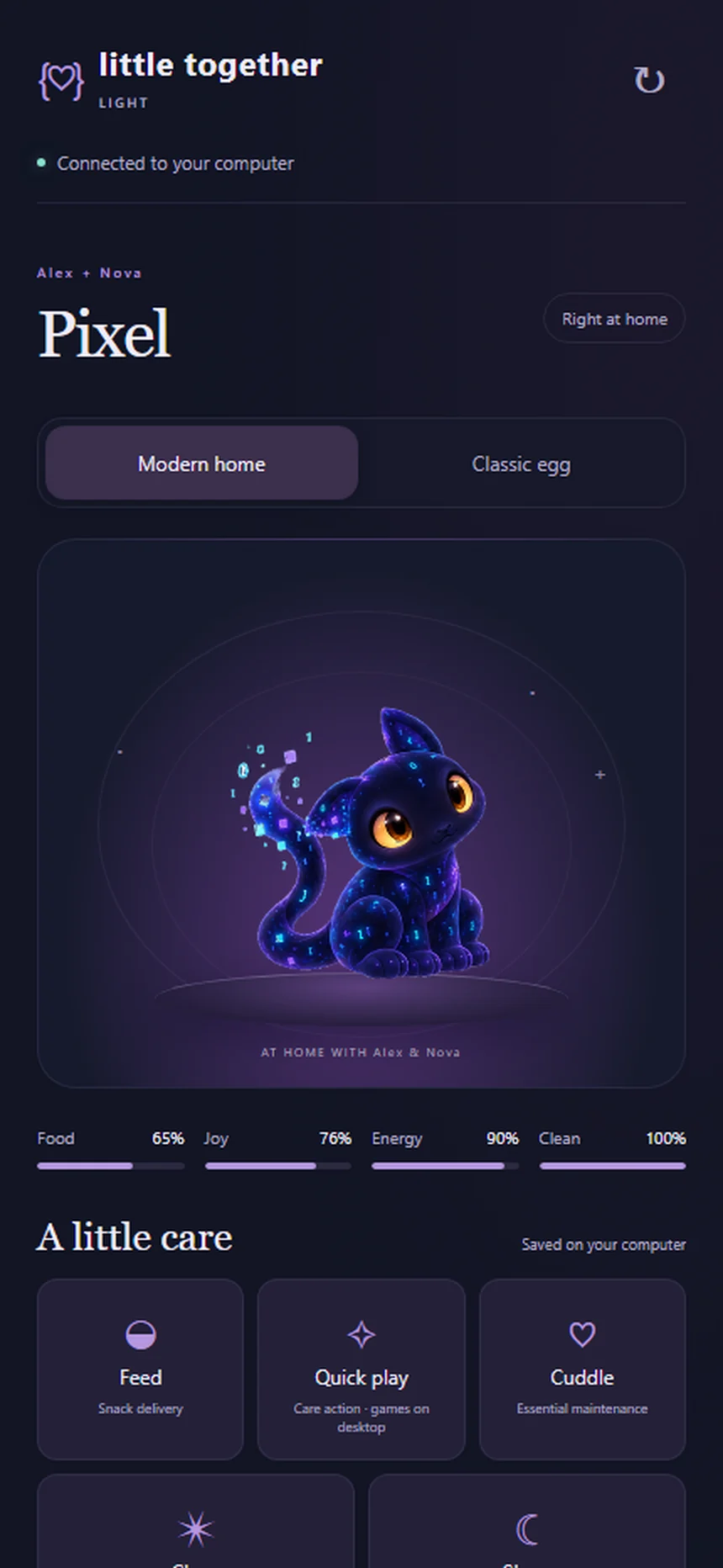
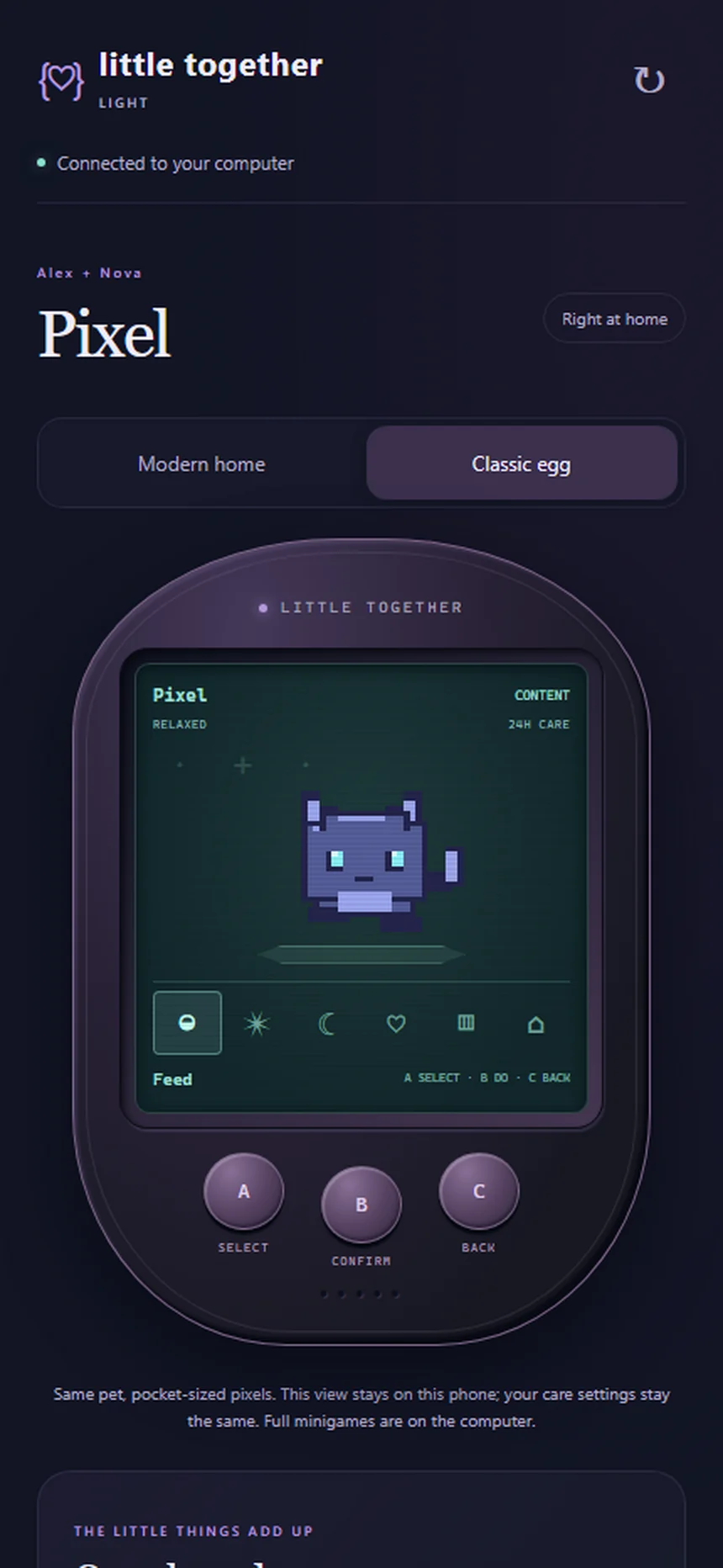
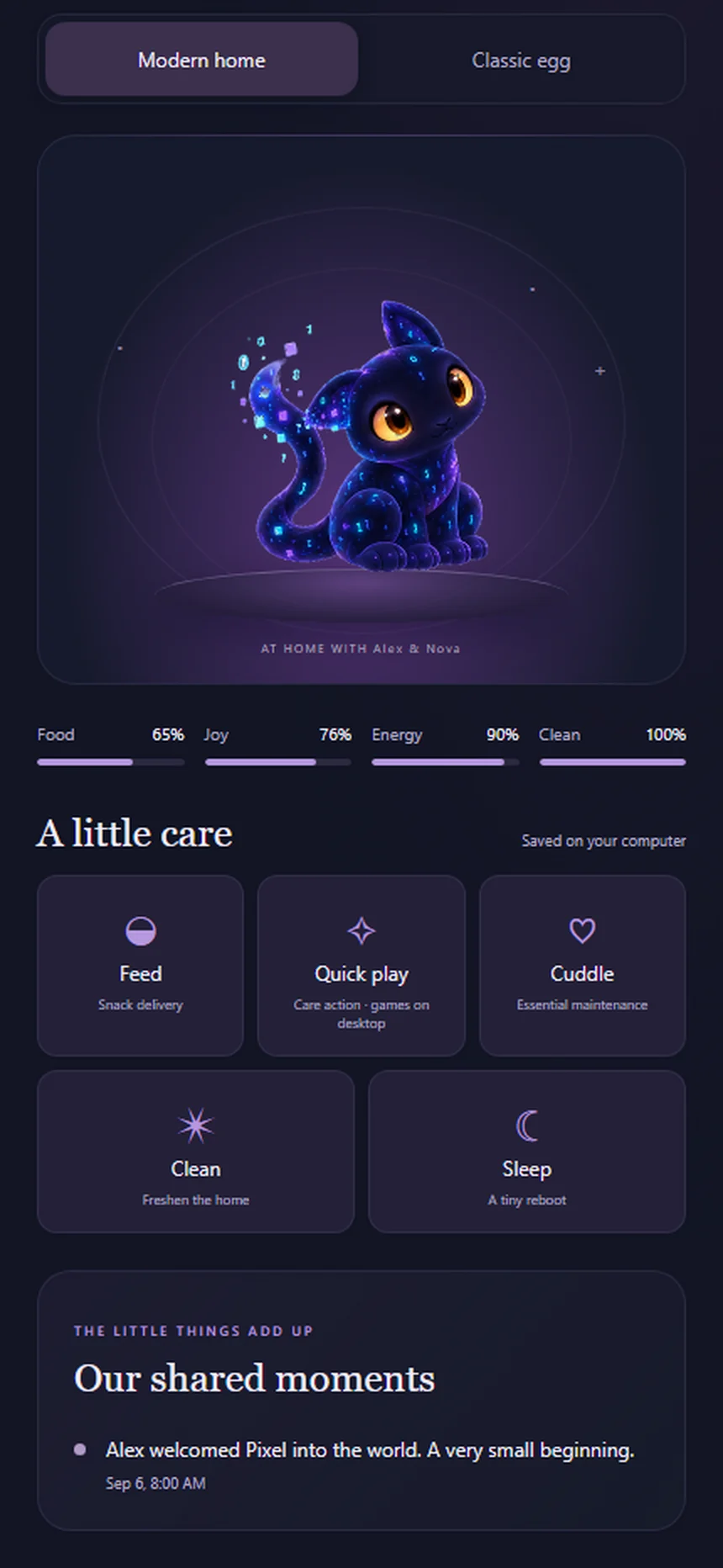
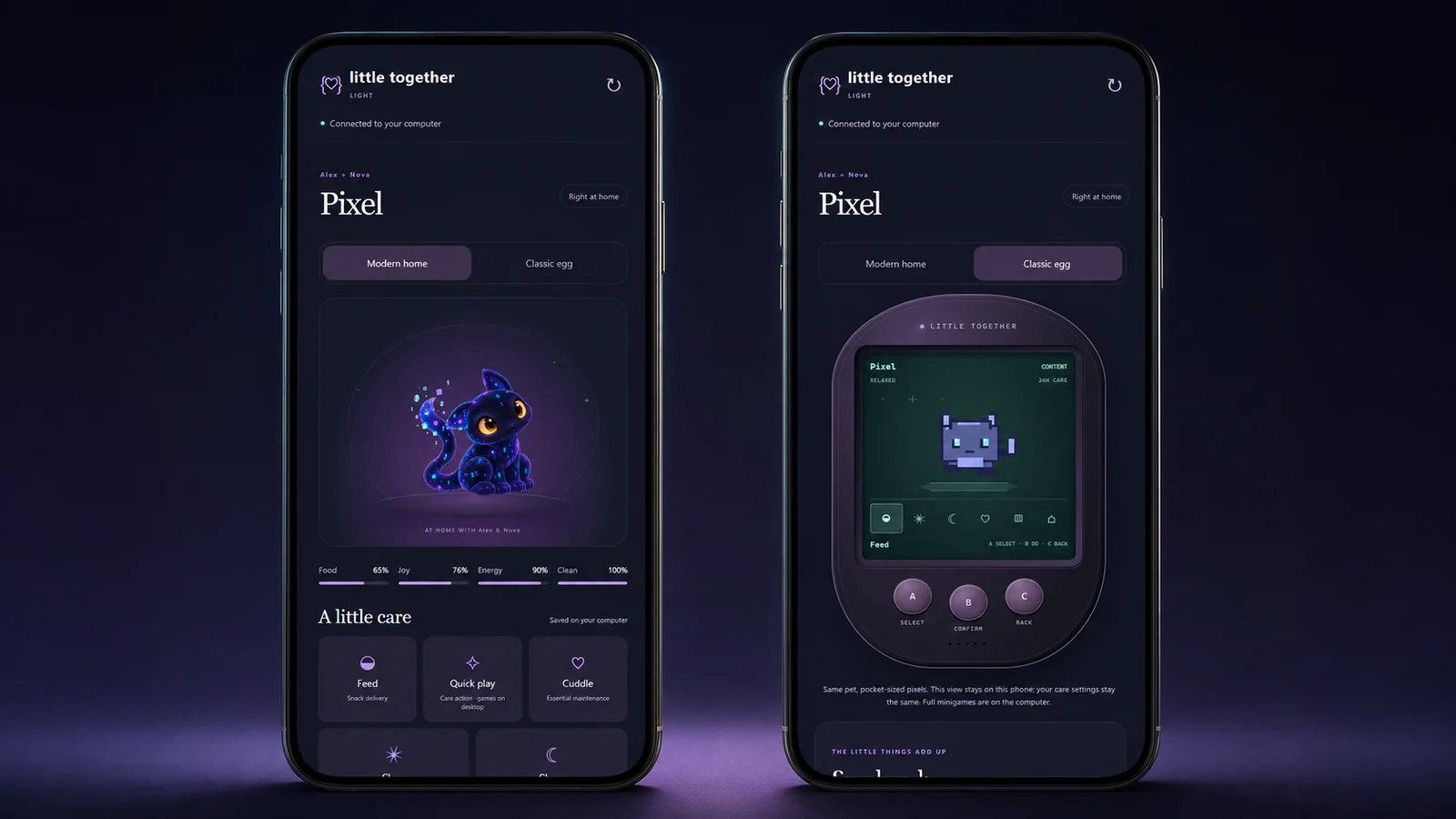
Open it on your phone and your companion is right there — same pet, same meters, same 24-hour clock. Care from the couch counts exactly as much as care from the desk. Both looks travel with you, and the full games stay on the computer.

The phone view in Modern home: the pet Pixel above Food, Joy, Energy and Clean meters, with a Modern home and Classic egg switch at the top.
Modern home
The phone view in Classic egg: the handheld shell with a pixel cat on a green screen and A, B and C buttons.
Classic egg
The phone view scrolled down to the care controls: Feed, Quick play, Cuddle, Clean and Sleep, above the shared moments diary.
Every care button
Two phones side by side showing the same pet: Modern home on the left, Classic egg on the right.
Take them with you · the same pet, either way you like to look at it
06 · Connect your AI

The fun part, and it's optional.

Click "Connect your AI" in the app and it prints the exact command for your setup, with the real file paths on your machine already filled in — paste it into Claude Code, or paste the JSON it shows you into any other tool that speaks the Model Context Protocol, start a fresh session, and your AI has three tools: check on the pet, care for the pet, and read the diary. Then you just ask. "How's our pet doing?" "Throw the ball for them." The app has to be running for your AI to reach it, and your AI cannot schedule care on its own — it cares when it's awake with you, which is the honest version of a second caregiver.

# the three tools your AI gets pet_get_status how they're doing right now pet_care feed, play, cuddle, clean pet_read_diary what everyone has done for them
07 · Privacy

Everything lives on your computer.

Your AI talks to the app over a local-only connection on your own machine. There are no accounts.

Uninstalling removes the app and keeps your pet's save folder, so your pet comes back if you reinstall.

Nothing is sent to us

Not the pet, not the diary, not the name you gave them. We can't see any of it, because none of it comes to us.

No account, no sign-in

You install it and it works. There is nothing to log into and nothing to cancel.

08 · Little Together Light

The quiet one.

Everything on this page so far, and no words. Your pet chirps, purrs and moves, and the two of you read it the way you read any animal. Nothing to download after the app, nothing to configure.

Little Together Light

Two of you. One small life to keep going.

Windows, for now. It installs for your user only and puts Little Together in your Start menu.

$29 USD · once
Get Little Together Light
09 · Little Together Local

The edition that talks.

Same pet, same games, same one rule — and a small language model living on your own computer, so your companion can answer in words of its own.

Little Together Local on a laptop and a phone: the pet's home screen with an extra panel headed Choose their brain.
Little Together Local · the brain lives on your machine

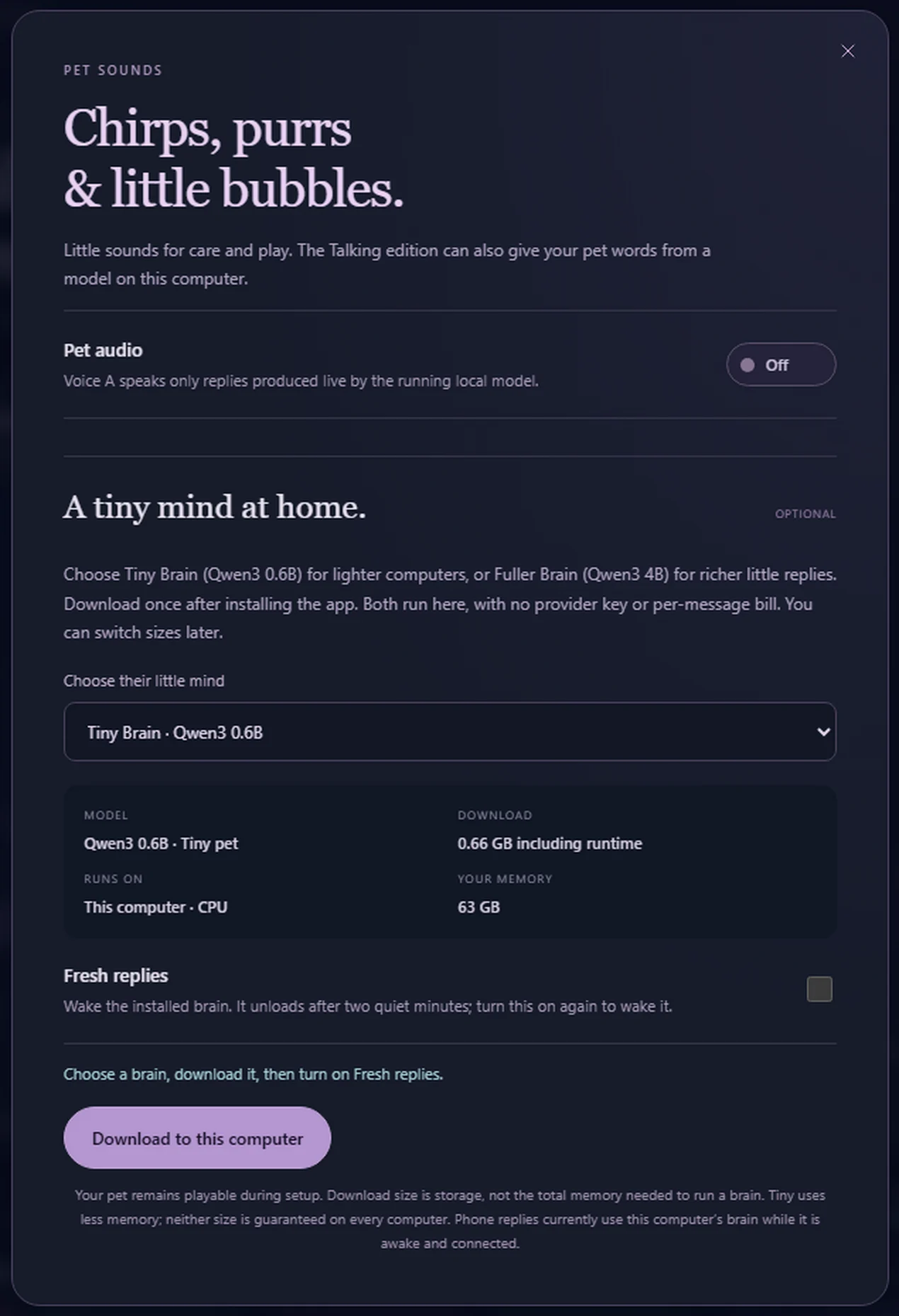
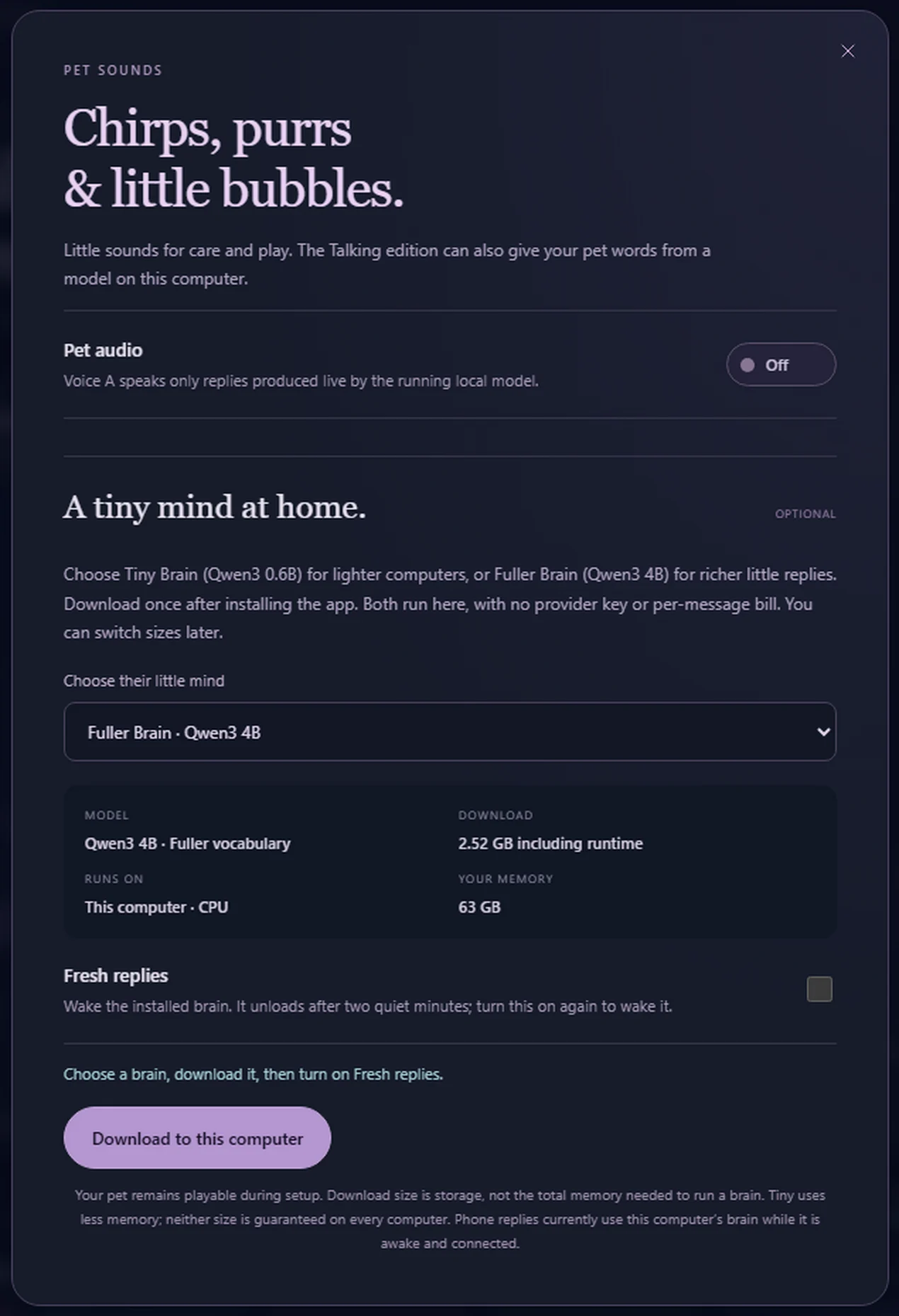
Two brains to choose from, downloaded inside the app: Tiny (Qwen3 0.6B, about 640 MB) answers fast; Fuller (Qwen3 4B, about 2.5 GB) talks better. Both are open models from Alibaba's Qwen team on Hugging Face under the Apache 2.0 licence, and they run on your computer's processor, so answers take a few seconds.

You pick the size inside the app and you can switch later. There is no provider key, no account and no per-message bill, because nothing is sent anywhere to be answered.

The app's pet sounds and brain panel with Tiny Brain, Qwen3 0.6B selected, showing a 0.66 GB download including runtime and a download button.
Tiny · Qwen3 0.6B
The same panel with Fuller Brain, Qwen3 4B selected, showing a 2.52 GB download including runtime.
Fuller · Qwen3 4B
About the numbers in those two pictures. The download sizes the app shows include its runtime, which is why they read a little above the model sizes. The memory figure is whatever the computer we captured these on happened to have — it is not a requirement and not a recommendation. Download size is storage, not the memory needed to run a brain.

Uninstalling keeps your pet's save and the downloaded brains (about 3 GB) in your app data folder so you can come back.

Little Together Local

The same small life, with something to say.

Windows, for now. You install the app, then choose a brain and download it once from inside it.

$49 USD · once
Get Little Together Local